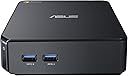
🚀 Tiny Titan: Big performance, zero bulk.
The ASUS CHROMEBOX-M004U is a sleek, ultra-compact desktop powered by a 1.4 GHz Intel Celeron dual-core processor, 2GB DDR3 RAM, and a 16GB SSD. Designed for lightning-fast startup and seamless cloud integration with Google Chrome OS, it supports multi-display setups via HDMI and offers expandable memory up to 4GB. Ideal for professionals craving a minimalist yet powerful device for multitasking, media streaming, and cloud-based workflows.
| ASIN | B00IT1WJZQ |
| Additional Features | Ultra Small Form Factor |
| Aspect Ratio | Unknown |
| Best Sellers Rank | #286,061 in Computers & Accessories ( See Top 100 in Computers & Accessories ) #8,233 in Mini Computers |
| Brand | ASUS |
| Built-In Media | Chromebox - ultra small form factor, Power adapter |
| CPU Model | Celeron |
| CPU Model Number | Celeron 2955U |
| CPU Model Speed Maximum | 2.8 GHz |
| CPU Speed | 1.4 GHz |
| Color | Midnight blue |
| Compatible Devices | [INFERRED: Keyboard, Mouse, Monitor, Printer, Smartphone, Tablet, Projector] |
| Connectivity Technology | wireless |
| Cooling Method | Air |
| Customer Reviews | 4.2 out of 5 stars 1,349 Reviews |
| Display Resolution Maximum | 3840x2160 |
| Global Trade Identification Number | 00886227694921 |
| Graphics Card Description | Integrated |
| Graphics Card Interface | Integrated |
| Graphics Coprocessor | Intel HD Graphics |
| Graphics Description | Integrated |
| Graphics Ram Type | DDR4 SDRAM |
| Hard Disk Description | SSD |
| Hard Disk Interface | Ethernet 100Base-T |
| Hardware Interface | Ethernet |
| Human-Interface Input | Touchscreen with Stylus Support |
| Item Dimensions | 4.88 x 4.88 x 1.65 inches |
| Item Type Name | Asus CHROMEBOX-M004U Desktop |
| Item Weight | 2.2 Pounds |
| Keyboard Description | Standard QWERTY Keyboard |
| Keyboard Layout | QWERTY |
| Manufacturer | ASUS |
| Memory Clock Speed | 1600 MHz |
| Memory Slots Available | 1 |
| Memory Speed | 1600 MHz |
| Memory Storage Capacity | 2 GB |
| Model Name | CHROMEBOX-M004U |
| Model Number | CHROMEBOX-M004U |
| Model Year | 2014 |
| Native Resolution | 3840 x 2160 |
| Number of Component Outputs | 1 |
| Operating System | Google Chrome OS |
| Optical Storage Device | DVD-R |
| Personal Computer Design Type | Mini PC |
| Power Plug Type | Type A - 2 pin (North American) |
| Processor Brand | Intel |
| Processor Count | 2 |
| Processor Series | Celeron |
| Processor Socket | BGA 413 |
| Processor Speed | 1.4 GHz |
| RAM Memory Installed | 2 GB |
| RAM Memory Technology | DDR3 |
| RAM Type | DDR3 SDRAM |
| Ram Memory Maximum Size | 4 GB |
| Resolution | 3840 x 2160 |
| Security Features | Unknown security features |
| Specific Uses For Product | personal, gaming, business |
| Style Name | Celeron |
| Total Number of HDMI Ports | 1 |
| Total Usb Ports | 4 |
| UPC | 803982791658 886227694921 |
| Video Output | HDMI |
| Video Output Interface | HDMI |
| Video Processor | Intel |
| Warranty Description | 2 year coverage for labor, 2 year coverage for parts |
| Wireless Compability | 802.11abg |
| Wireless Network Technology | Wi-Fi |
| Wireless Technology | Bluetooth, Wi-Fi |
K**R
MORE ON FANTASTIC LITTLE COMPUTER!
Fantastic little gadget! I've had the Asus Chromebox M004U, the inexpensive one-$169.00, 2GB ram, 16GB SSD-for a little over a month and from using it, I'll state that it is better than advertised. When the box arrived from Amazon, it didn't look big enough for a "real" computer. Bear in mind the Chromebox is only 5" x 5" x 1.5" in size. I took out the Chromebox, plugged in the power supply and looked for a cable to hook up a monitor. Neither a DVI or a VGA plug will work. I did find an HDMI-to-HDMI cable which fits the Box, but not either of my monitors. I was thinking about buying a new monitor when I remembered that my 32" LG TV had a second HDMI port. It's mounted on a swing-arm close to my computer desk in my "man-cave" so I can catch football games and NASCAR away from the rest of the family. I pulled the arm & TV over closed to the desk, pressed the power switch and got a picture. The set-up went quickly and easily. I already use Google Chrome browser and the Chrome operating system is based on it so I was functional on that part. I entered my wifi password and, just like that, I was on the web. All my favorites were there just like on my PC. I surfed around to several sites and everything looked as normal. I should mention that everything was fast. I also already use Gmail, so the email part went fast. It's exactly the same as Gmail on my PC. I think you can set it up for Outlook, but since I use Gmail, I didn't bother to try that. It comes up fast. Someone told me 7 seconds. I have counted 1-thousand, 2-thousand... and quit because I never got over 7-thousand. You can't get to what you have on your PC hard drive. If you have saved it to Skydrive, you can easily find it with your Chromebox. I was getting worried. Everything was going quickly and smoothly, then I hit a snag. I went looking for a file, any file, and couldn't find one. Well, Toto, we're not in Windows land any more. We have to go see the Wonderful Wizard of Google. Let me give you a translation from Windows to Google for some I have picked up. 1. First, think of your Chromebox as a big Android phone. 2.There are a group of icons in the lower left side of the monitor just like Windows. Google calls this line of icons the SHELF. 3. The first icon is black with 9 little squares like a keypad. This is effectively your Start button. In Google-ese, it's your APPS. 4. You can move apps to and from the shelf. Right click on the icon in your apps and select "Pin to shelf." If the "Pin to..." sounds familiar, it's just like an Android phone. 5. Somewhere in your apps you'll see a blue, green & yellow triangle. This is Google drive. Think of it as your C: drive. You automatically get 15GB G-drive space free. When you buy a Chromebox or Chromebook laptop, you get another 100GB free for two years, as I recall. I was wondering what Big G was going to hit me for extending the 100GB. I checked and when I did, it was $2 per month. Pretty cheap. 6. I already had Microsoft Skydrive, (or is it Onedrive or is MS trying to confuse us). It also works just like Google drive. 7. If you are paranoid about storing things in the cloud, you are in trouble because everything is automatically stored in your cloud. 8. Speaking of saving, don't look for a save button. There is none. Remember, everything is automatically saved to the cloud. 9. You can hook up an external hard drive, but I haven't tried that. The Chrome computers DO NOT support CD or DVD drives yet. 10. Google Docs can read all my Word files and save as either .docx or Google files. No problem here. 11. Amazon Prime videos work just great through the Chromebox. So does Kindle for books (Kindle Cloud). Bottom line: Since I got this little jewel a month or so ago, I have been on my PC maybe a dozen times. Some of those were to start moving more pictures and notes on radio control airplanes(my hobby) to either Skydrive or Google Drive. The Chromebox makes my PC seem slow and antiquated. Sure it doesn't do Photoshop and others, but for surfing, watching videos and movies, reading Kindle books and doing the occasional doc or spreadsheet, it's been excellent for me. For what I do at home, I'll take a Chromebox over a PC any day. Added May 10, 2015: It just dawned on me that I haven't turned on my Windows PC in 2 weeks! It's still fast. It books up fast (7 seconds to the password prompt-I timed it). It shuts down fast-5 seconds. I've yet to see a prompt like, "Do not turn off or unplug your computer. Installing updates 1 to 21." Google print works fine, even from my phone-a Nokia Windows phone, no less. It goes through wifi & email. Double glad I spent the $160 for it.
G**E
Great as an HTPC (XBMC) and as a Linux desktop.
I have two of the Chromebox M004U (Celeron) models. (three now, see updates below) I installed an alternative BIOS (Coreboot) on both of them so I could replace Chrome OS. One of them is being used as an HTPC running the XBMCbuntu distribution (version 13.0 upgraded to 13.2). Stock hardware (Celeron, 2 GB RAM, 16 GB SSD). It handles any video I throw at it perfectly, even the ~45Mbps video from my DSLR camera. I don't have any Bluray rips, but I have no doubt it would work perfectly with them. It drives my 1080P television without any problems, both video and audio over HDMI. My media library is on a USB 3.0 attached HDD and I can get 140MB/sec sequential (not random) reads from it. I'm setting up the other one as a desktop PC for my kids. I installed an additional 2 GB of RAM and upgraded the M.2 SSD to 128 GB. This too has the custom BIOS installed. Edbuntu worked without issue, but I ditched it because of Unity. It's now running Linux Mint. All of the educational software I have installed (Gcompris, Tuxmath, Tuxpaint, etc) works like a charm. My favourite software on here, an astronomy program called Celestia, works great! I've installed optional higher resolution textures for all of the planets. It runs at an average of 30-45FPS with some dips when zooming in and out on planets with 32K and 64K textures. All of this while driving a 1600x1200 ASUS IPS display at full resolution with Celestia maximised (filling up the whole screen). And I have the Chromebox mounted on the back of the monitor with the included VESA mount plate. Linux Mint runs like a charm overall. Running Firefox and LibreOffice also works really well. And booting from a cold state takes seconds. I am very, very satisfied with these little Chromeboxes. Edit (2014/12/02): I picked up a third one on black friday for $110 just to play with, was specifically interested in loading OpenBSD on it. 5.6-stable doesn't work because of the lack of USB 3.0 (xhci) support, but 5.6-current installed without issue. The wireless adapter wasn't detected, but the Realtek ethernet device works. I have it driving a 1920x1200 display over HDMI. What a fantastic little piece of hardware! Edit (2015/01/30): I've been using this model Chromebox for about six months now. I have not encountered any problems. Still as zippy as the day I got them, cool to the touch, and stable. I have three of them and I want to get more! Just to recap, I've installed various Linux and BSD based operating systems on these puppies: * FreeBSD (so I could play around with bhyve) * OpenBSD * Linux Mint * Debian * Ubuntu * Edbuntu * XBMC Live (Ubuntu based) I love these little machines! Edit (2016/04/05): I'm still using three of these computers. One running XBMC, another running Linux Mint for my kids, and the third one now has CentOS installed on it. The second m004u with Linux Mint has been used for a few months now to play Minecraft. It gets ~30-45 FPS without any add-ons installed at 1920x1200 resolution. My kids have been having a blast with it. The third m004u with CentOS had its storage upgraded to a 256GB m.2 drive and 16 GB of memory was installed. It is running Xen 4 (Xen4CentOS) and I have eight different virtual machines running on it: * repository server running Apache and SSH. * shell server (for remote access) * minecraft server (has had up to seven users on it at the same time) * minecraft pocket edition server (running ImagicalMine, has had up to five users on it at the same time) * Three separate web servers (LAMP) for some friends and family member's websites * UniFi Controller Most of these virtual machines are running CentOS 7. The UniFi Controller VM is running on Debian. When a lot of people are playing Minecraft I've seen some slow downs, but for the most part the little box is running like a charm and has been stable for a full year. These machines are awesome!
T**L
I love this little system
I love this little system. Boots up and shuts down in seconds. Lightning fast, haven't experienced any bog downs what so ever, Sure it has its' limits, but if you need something for web browsing, email and basic Office Online then I suggest this little box. It's smaller in width than a mouse pad, very light and takes up little space. I love the 4 USB 3.0 ports, HDMI, speaker and card reader ports. I used this today to stream a game from NFL Game Rewind, I experienced no buffering at all. I own 3 Windows based systems (2 laptops, one is a core i-7 with 8 gigs of ram and 1 tower which is an Amd quad-core processor with 16 gigs of ram with a good video card) with the Windows systems I would get buffering or lag even after turning off all extensions in my browser and shutting down any unnecessary running applications. Is this going to kill Windows or Mac OS? No, but it's a fast little machine that does what it's made for. I also love the fact that I don't have to worry about the kids getting on it and infecting it with viruses, at least not yet. If you want to hook it up to the VGA port of your monitor like I did, I inserted a link below for the adapter I ordered. I use the DVI for my main desktop. Also, if you are looking for a KVM switch to share a wireless keyboard and mouse with your main system I inserted that link as well. I've tested this KVM switch with 3 different Logitech wireless keyboards and 4 different mice (one was a Microsoft and the other 3 were Logitech). I just plugged the KVM switch into the usb port and it instantly recognized it. I have also plugged in my Western Digital Passport 1GB external HD, my 2GB Seagate Expansion Drive, a 16GB and 32GB flash drive and a 32GB SD card into this and they all work great. For what it is, this is the best machine that I have bought in a long time. Chrome OS is very basic and there is no learning curve to it in my opinion. For the price I suggest that anyone who is looking for a no frills system, then look no further. This is the one to get hands down! Cirago DisplayPort to VGA Active Adapter http://www.amazon.com/gp/product/B005AT2LI0/ref=oh_aui_detailpage_o00_s00?ie=UTF8&psc=1 Tek Republic TUS-200 USB KVM Sharing Switch http://www.amazon.com/gp/product/B00FEM3OKM/ref=oh_aui_detailpage_o08_s00?ie=UTF8&psc=1
M**.
Solid value: Good bang for the buck as a media computer if you have a monitor and keyboard. Requires more memory to avoid lag.
We bought this to use to browse the web and do some work related stuff using our wall mounted TV. We already had a wireless keyboard, and the TV so this was a great deal at under $200. So far we have found the following: 1. There are some lag issues when it comes to streaming video in the Chrome Browser so have ordered a 8GB memory card to put in the empty slot: Crucial 8GB Single DDR3 1600 MT/s (PC3-12800) CL11 SODIMM 204-Pin. While it is not a matched upgrade (2x2 or 4x4 or 8x8) it should work just fine, and I have paired a 2 with a 4 on my laptop with no trouble. Look around and you will see that your memory will work at the slowest shared speed - we are ok with that. 2. It is a browser based OS. So, there are some issues if you do any work (docs, etc.) using Google Drive/Google Docs. First, many docs, spreadsheets, etc., may need to be downloaded. This is easily done using the Memory Card slot to expand your memory, or through an external USB HD. We are using the memory card slot to download files, edit them, then put them in Google Drive to share, etc. This is a bit of an annoyance, but not much different from saving a local version in Windows, then saving to Drive to share. We have only a 32g SD card, and this works for most everything we do document wise. I could see if you had a lot of data how a external HD or SSD or even a large capacity SD card would be the way to go. We are fine using this. Adding the SD card was easy. You pop it in, format it, and then set the settings to make the SD card the download location default (here are instructions: https://support.google.com/chrome/answer/95574?hl=en-GB) 3. It could be better - the OS that is. It would be nice if like Ubuntu you could use things like Google Docs offline in an easier way. We are always connected to the internet when we use this so we have no complaints, but I can see how some folks might want to be sure to have the ability to use a heartier version of the OS - just like you can use your Android phone when not connected to the internet or wifi. It would seem that Google needs to build out the OS to offer a "lite" and "advanced" version for those who may want a little less of a "netbook" experience from this device. Overall, this is perfect for what we use it for, and was a good swap out for the 5 year old laptop that was filling in as our "media" computer.
K**P
Best desktop available for the typical computer user
Just fired up my brand new ChromeBox It's incredible how zippy it is. Started up in a fraction of a second. Once I logged, in everything was already here waiting for me (as expected). I received 100GB of free Google Drive storage for two years (more than enough space). The operating system has a very in-depth tour which you can launch at any time during use to familiarize yourself with different features and applications. For Apple users: It explains how to sync your iTunes library to Google Play Music for free. Also explains how to use iWork on the ChromeOS for viewing Keynote presentations and using other iWork software in the cloud. For Windows users: It explains the full, free replacements to Microsoft Office and links to the free applications (many of which come pre-installed such as Google Docs, Spreadsheets, Slides, Gmail, and Drive) - although if you truly can't live without MS Office, Microsoft has released their apps for Chrome. For Creative Professionals: It explains that Adobe has not supported Chrome yet; however, there is a feature rich photo editor as part of the operating system, and there are several advanced photo editing tools available for free in the Chrome store that will more than meet the needs of a casual Photoshop user. For Music Enthusiasts: I'm a die-hard fan of Google Play Music All Access, but if you prefer, Chrome also has an app for Spotify and Pandora. For Conference and Video Calls: While Skype is not yet supported on Chrome, Hangouts is a lower-resource, higher-quality experience which also allows for large groups to be video-conferenced in (including telephone numbers, not just other Google users), and features collaborative tools for group projects for work and/or school. Additional features include the ability to record the conference for later use, post-production, or sharing on YouTube or other video-sharing sites. Video/TV/Movie Enthusiasts: VLC is an application that is available for almost every operating system out there, and it's an excellent tool for watching video. Unfortunately, it's not currently available for Chrome - but Chrome does feature its own media player that supports many of the most common video and audio formats. I was also very pleased to report that Amazon Instant Video works flawlessly on ChromeOS - something that is not quite the case when attempting to watch Amazon videos on Ubuntu. Folks that need specific software: There will always be the folks with very specific needs when it comes to software - something that is custom built for a specific job and only runs on Windows or OS/X. Have no fear - you can still access those applications in ChromeOS. Chrome features Google's very own Remote Desktop tool (which works incredibly well - better than my experiences with Microsoft's remote desktop tool) that allows you to access another computer (as long as the Google Chrome browser is installed on the destination computer with your account saved and the Chrome Remote Desktop app installed on the destination computer). This allows you to remote in to the other computer and use the full range of software. If you can't install Chrome browser on the destination computer, but you or your organization have a Citrix server, you can also use Citrix to remote into the remote computer or a VirtualDesktop to use full OS/X, Windows, or other software you may need to do your job, all on the light-weight, inexpensive ChromeBox - this is ideal for large organizations and schools, which can purchase many ChromeBox devices for low cost and just scale up their server infrastructure and run virtual machines - consolidating IT and security primarily to the server and requiring lower maintenance of the client computers due to ChromeOS being far more secure and up-to-date than the leading competitor operating systems. There's also a tutorial on how to stay safe and keep your data secure. It's all VERY user friendly, and I have to say it really "just works" For the average person, a ChromeOS computer is an incredible buy - and for only $179, this just can't be beat at the moment. Lightyears ahead of my Windows 7 machine just because it's so much more efficient and lightweight. I wish I could convince my work to replace our expensive out-dated computers with these inexpensive up-to-date computers and just provide us with a VirtualDesktop through Citrix for the legacy applications we're phasing out as we move to a cloud-based system.
G**.
Great, but With One Caveat
I've owned a Chromebook for about a year and love it (see that review here: http://www.amazon.com/review/R23LMLS9TPSV65/ref=cm_cr_pr_perm?ie=UTF8&ASIN=B00FNPD1OY). Around Christmas I was looking for a low-priced desktop to replace an aging no-longer-supported Windows XP machine. I stumbled across the Intel NUC and was blown away that there is finally a PC the size of a Mac Mini. What took them so long? The Mac Mini has been around for like 10 years! Anyway, as I gawked at this tiny bare-bones computer and its variations, I scrolled down to see what other customers shopped for and there was the Chromebox. I was blown away again (twice in one day) to see that it existed. I had no idea. I guess I haven't been watching enough techie geek shows lately. I couldn't believe how inexpensive Amazon was selling them for at that time ($134). Based on my love for the Chromebook, the decision to get a Chromebox was a no-brainer. After mulling it over I decided on the base model. The ones with more RAM and/or a keyboard and mouse were ridiculously over-priced compared to the cost of buying those items separately. Besides, the reviewers hated the keyboard and mouse. Instead I added 2 gig of RAM myself and bought a wireless keyboard/mouse combo pack that got good reviews and works brilliantly. As for reviewing the Chromebox, it's hard to say anything that hasn't already been said. It's just a wonderful little computer. My chick is impressed at how fast and easy it is to use and how little space it takes up. It's tiny, lightning fast, has all the connections you need and is powerful. Well maybe powerful isn't the right word. More like the ChromeOS is light and simple enough to not require a whole lotta power. As mentioned above I upgraded the RAM from 2 to 4 gig (for less than 20 bucks). I wasn't sure if the upgrade was necessary (after all they sell so many of them with only 2 gig) so I downloaded an app called "System" to see how much RAM was being used at any given time. With a few tabs open and a game of Pac-Man running in the background, it hovers around 2.5 gig. So the upgrade was definitely worth it. The RAM was easy enough to install BUT I think I torqued one of the screws too much putting the box back together. I heard something snap inside and now that screw just turns freely. Oops. No matter. The box isn't going to fall apart with the 3 remaining screws holding it together. The only disadvantage of the ChromeOS is it can't print directly to a printer. You need a printer that is "cloud print" capable or you need to share an old-school printer through Windows or Mac (which I'm pretty sure doesn't work...and defeats the purpose of replacing them). What I don't understand is why Google won't write the drivers or can't get the manufactures to (like they did for Android). I get that they want everything in the cloud, but it seems silly to go through all that for a printer that is 6 inches away. As a work-around, you can email your document to yourself and print it from your phone.
J**E
So so
I purchased this to supplement my Roku. ASUS Chromebox is web based using, of course, Google Chrome. If you are not a fan of Google Chrome you may not be 100% happy using this. I confess that I am a dyed in the wool MS Windows/Office user for many years. I find it hard not to want to use local resources (local printers, local or internal storage, etc) just because it doesn't have a web interface, but that is what this appliance is all about. For me, this does not replace my laptop when I have real work to do. It is OK for surfing the web when in front of the TY, but I highly recommend that you have a seperate/different Google account just for this box if you use it on your primary TV. Otherwise, your entire browsing history, youtube viewing history, etc. will be displayed for all to see when you are using it. Additionally, Google has changed Chrome's security and now it doesn't seem to remember userids or passwords, great for security, bad for usability, especially for home use. If all you need is someway to browse the internet, and if you create a separate Google account, this is an OK appliance. As a replacement for you real computer, NOT.
S**L
Fast, efficient and a bargin!
Disclaimer: I am a long time geek, Microsoft and Apple user, and developer. I began my "grand" experiment with Chrome OS when I purchased the popular Samsung Chromebook. To my surprise, it was not the neutered browser with a keyboard critics like Paul Thurrott have loudly proclaimed. It completely replaced my heavy Toshiba Satellite laptop updated to Windows 8. I was becoming smitten with instant on, reduced exposure to malware and even Google Docs! When in bed or simply catching up on news, I used my Asus 8.0 RT tablet and became reliant on touch when not working on projects requiring a desktop computer. I longed for a touch Chrome OS tablet and was a perfect target customer for the Acer 720P. My 720P Chromebook has almost completely replaced my RT tablet. I am frustrated by the seemly endless disruptive Windows updates and hooked on the limited yet user-friendly Chromebook devices! I wanted to use Chrome OS in my office with a larger display. The Asus Chromebox was tempting when introduced at $179 but hard to get through Amazon. Then the price started fluctuating and was only available through sources selling on the Amazon site but not by Amazon. When supply caught up with demand, Amazon again offered it for $179 and two day prime shipping. I could not resist and have my Chromebox connected to our HP w2408 monitor. I wanted to share my monitor with my HP Windows 8.1 tower and the Chomebox. After reading a few reviews and spec sheets, I purchased a Portta PET0301S 3x1 HDMI Switcher for less than $10.00 and a two cable Amazon Basics High-Speed HDMI package. The switcher works flawlessly and the IR remote control makes placement of the small switcher flexible. I am using a Logitech K400r wireless keyboard/track pad with the Chromebox and, though not as good as my full PC keyboard and wireless Logitech Track Ball, it is usable and easy to put aside when switching between Win PC and Chromebox. I use a small Creative Labs Travel Sound speaker connected to the audio out for most audio but my beloved LG 700 Bluetooth headset connects without issue and works without the pauses and skips I sometimes experience when paired with my Windows 8 phone and RT tablet. While Microsoft struggles with getting Bluetooth audio right, Google offers rock solid software support for basic stereo audio streaming! BRAVO! I loathe the never-ending Windows updates and the sinkhole they can become if a machine is left offline for more than a week. My Chromebox updates with much- appreciated stealth and is as fast and as efficient as most other reviewers claim. I have become a fan and can easily recommend Chrome OS devices to those who understand their limitations.
D**N
Great: Does What it Says on the Box!
Chrome OS is great. But you probably know that already. What can I add about this device? Well, it's small and noiseless and comes with a VESA mounting plate that means you can potentially slot it onto the back of a monitor or television, clearing more space on your desk, etc. You don't normally need more than 2gb RAM for Chrome OS so the memory is fine but it's really cool that you can easily upgrade it yourself if you want, for about $20-30. Likewise, the 16gb SSD storage - I barely use it anyway, except for temporary download files, as everything is easily stored on the cloud via GDrive. The displayport and HDMI outputs make it easy to attach two monitors at once, for an extended desktop, which is how I've got it set up. I've attached a Logitech keyboard and trackpad (instead of a mouse) and all the peripherals worked perfectly. The only minor glitch I had is that for some reason the ethernet and wifi can't be enabled at the same time without killing the connection, but that doesn't matter because it's permanently on ethernet anyway. It's pretty fast. It boots up in - I dunno - a few seconds, like Chromebooks do. A few comments for anyone who doesn't know about Chrome OS... 1. It's based on Linux but with a user interface that's totally optimised for web browsing via Google's Chrome browser. 2. Can you use MS-Office? Well, you probably don't need to. You can easily use Google's cloud-based office suite to do most of the same basic stuff, including opening MS-Word files. However, what Microsoft don't like to mention is that, obviously, they've got free cloud-based versions of their own office suite anyway, so if you just log into Onedrive you can use the MS-Word web app online, Excel, Powerpoint, Outlook, etc., anyway. There are also plenty of other office-type web apps available. 3. Chrome OS is fast because it doesn't install much software apart from the Operating System so no more endless updates. 4. It's very unlikely you'll ever get a virus on this thing, and it has protection built in - unlike Windows, which is a massive virus magnet. 5. You can do most things on the web now so there's not much need to install software on your pc for 99% of what most people do most of the time, arguably. 6. It's cheap, so there's not much worry about replacing it in the unlikely event you run into a problem. However, these things are likely to last a lot longer than Windows-based devices, for several reasons. 7. It does something simple and useful but does it really, really well. 8. It runs offline apps, contrary to what critics initially said. You can wordprocess and edit text offline, and Google have just said that you'll soon be able to watch movies from Google Play offline. You can already play movies or music stored to the local drive offline anyway. 9. Chrome consistently outperforms other browsers and now has better features so overall it provides the best web browsing experience but with the momentum from Chrome OS it's now developing more and more, and you get automatically updated seamlessly in the background. 10. If you mainly work on the internet and compose simple documents then this may be the ideal machine for you. I have this and an HP Chromebook and I love them both. The Chromebox is probably a bit quicker even though it's got half the RAM.
A**Z
Kodi box
I'm using it converted to run Openelec so I can use it as a Kodi media center. I wanted to replace an old Nettop which developed issues. Works perfectly, my most stable HTPC yet.
J**N
Perfect solution for basic media PC.
We wanted to hook up a simple computer to our TV in the living room as a media PC.After weeks of researching computer options, bare bones, other computers that didn't come with software or an os, etc. I found the chromebox. This is exactly what I wanted. The design is great! We hooked it up by HDMI to our receiver (Onkyo HT-R393 5.1 channel) in the "PC" input. Turned it on and logged in to our long standing gmail accounts, and we were off! Flawless. Our profiles loaded up right away. Because of all of the available USB ports, we hooked up an external hard drive to watch our saved movie files, have a usb stick on the front with other media files, the keyboard uses a fob, and there is still one usb open, conveniently on the front. I really appreciate the simple os. I haven't used the Google Docs function, but if I were working on business items, I could easily use my TV for a presentation, very cool and this little box is so portable! I haven't yet used Google to purchase movies or music. I will update my review once I have. I'm using the Logitech Wireless Touch Keyboard K400 Plus (920-007119) . It works perfectly as mouse and keyboard in one, it also acts as a remote to turn the chromebox on and off. I will try to check in again down the road, but 2 days in now, I'm very impressed with this purchase and would recommend. We wanted it mostly for streaming, and we've been running Netflix over wireless and there is no delay and the image is great. If you're looking for a convenient media PC at a great price point, give this a try - though if you don't already use gmail, it may not be as convenient.
J**S
Excelente
Muy buena opción para negocio donde necesitas mostrar publicidad, vídeos o contenido a tus clientes, por su opción de trabajar con dos pantallas a la vez
C**N
Perfecto para home computing
Buenisimo producto. Solo que a Los 5 días bote una pastilla mientras estaba conectado y se desconfiguro u tuve que cargarle el chrome os con un 4 gb flash drive. Apartir de eso trabaja muy bien el aparato.
Trustpilot
2 months ago
2 weeks ago