Buy anything from 5,000+ international stores. One checkout price. No surprise fees. Join 2M+ shoppers on Desertcart.
Desertcart purchases this item on your behalf and handles shipping, customs, and support to KSA.
🔴 Master your workspace with precision and comfort — the ultimate trackball for pros who demand more.
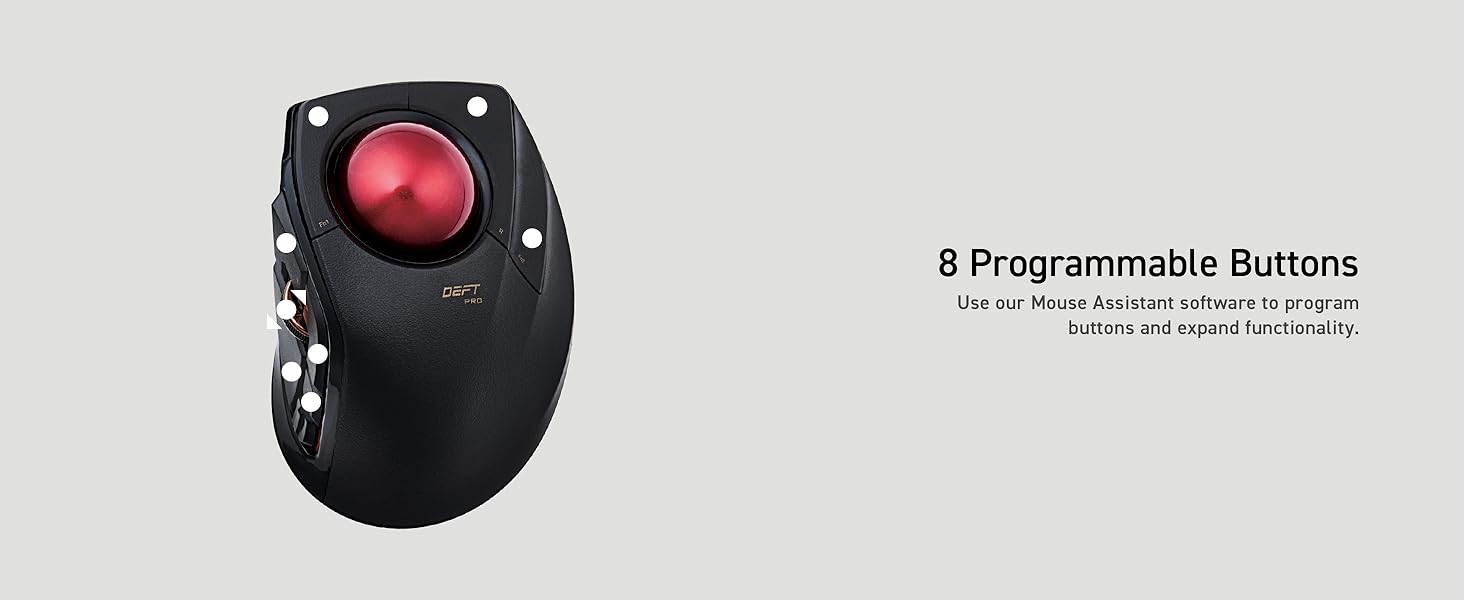
The ELECOM DEFT PRO Trackball Mouse offers versatile 3-mode connectivity (wired, wireless, Bluetooth) combined with an ergonomic design tailored for right-handed users. Featuring 8 programmable buttons, adjustable DPI settings (500/1000/1500), and a smooth red trackball on durable ruby bearings, it delivers precise cursor control while minimizing hand fatigue. Compatible with Windows 8/10/11 and macOS 10.13+, it’s powered by an included AA battery and backed by a 3-year warranty, making it a top choice for professionals seeking productivity and comfort.


| ASIN | B07C9T4TTW |
| Additional Features | Bluethooth, Programmable Buttons |
| Antenna Location | Gaming |
| Are Batteries Included | Yes |
| Are Batteries Required | Yes |
| Best Sellers Rank | #12 in Computer Trackballs |
| Brand | ELECOM |
| Built-In Media | AA battery, cable, mouse, user manual |
| Button Quantity | 8 |
| Color | Black / Red ball |
| Compatible Devices | Personal Computer |
| Connectivity Technology | Bluetooth, Wired, Wireless |
| Customer Reviews | 4.0 out of 5 stars 2,169 Reviews |
| Enclosure Material | Plastic |
| Global Trade Identification Number | 04953103349100 |
| Hand Orientation | Right |
| Hardware Platform | Laptop, PC |
| Item Dimensions L x W | 5.25"L x 3.6"W |
| Item Type Name | ELECOM HUGE Wired / Wireless / Bluetooth Finger-operated Trackball Mouse, 8-Button Function with Smooth Tracking, Precision Optical Gaming Sensor (M-DPT1MRXBK) |
| Item Weight | 5.76 ounces |
| Manufacturer | ELECOM |
| Mfr Part Number | M-DPT1MRXBK |
| Minimum Required Operating System Version | Windows 10 |
| Model Name | Deft Pro |
| Model Number | M-DPT1MRXBK |
| Mouse Maximum Sensitivity | 1500 Dots per Inch |
| Movement Detection | Trackball |
| Movement Detection Technology | Trackball |
| Number of Batteries | 1 AA batteries required. (included) |
| Number of Buttons | 8 |
| Operating System | Windows 10 |
| Power Source | Battery Powered |
| Range | 10.0 meters |
| Special Feature | Bluethooth, Programmable Buttons |
| Style Name | Trackball Mouse |
| Unit Count | 1.0 Count |
| Warranty Description | 3 year manufacturer |
T**S
Great for Large Hands!
I use the computer for navigating the internet & as a photographer. My hands are pretty large 8" & 1/4. I have always had problems with hand cramps because I have to hold the mouse in sort of a pinch position. For many years I was in love with the original Microsoft big track ball (2010) but they were discontinued so I have been searching for something similar for quite a while. So far this has been a great alternative. I use Lightroom & Photoshop almost daily, sometimes up to 10 hours a day along with a Wacom Tablet for detailed editing but I never liked the Wacom for navigating the internet or programs. The Def Pro has solved all my problems with cramping since it completely changes hand movement. I don't have to pinch the mouse to right & left click because the device comfortably fits in my palm with my fingers relaxed. The thumb becomes the left click, the middle finger becomes the right click & because of the track ball design I can rest the heel of my hand on the desk comfortably. The ball is precise but only as accurate as your finger dexterity. I actually had to slow the speed down a bit. There has been no jumping, stickiness or drag to the ball at all. The thumb wheel is more precise to input than most mice I have used & I have used quite a few. While navigating a page you can scroll back & forth for up & down or tilt the wheel up & down to go right & left. It is a bit tricky downloading the (foreign language) instructions but with persistence & guessing it's not that difficult finding the English version. The mouse works fine out of the box, even with Windows 10 but downloading the Mouse Assistant allows giving the buttons specific operations or changing the function of them. Once you are in the Assistant, it's very simple to use. I'm not a gamer so I have no complaints about the functions available. The only problem I have is that the mouse doesn't wake up after the computer goes to sleep but that may be something to do with the fact that I am using Windows 10 & this device is advertised for Windows 11. I did figure out a workaround of just unplugging the USB plug momentarily which wakes up the mouse which is fine until I upgrade to Win 11. Overall I gave this device 5 stars because it works as advertised & better than several alternatives I tried previously at different price points. I'm not a heavy gamer but I am a heavy mouse user & this item seems to be a good value for function, quality & price. I would definitely buy again or try other ELECOM products.
M**K
A really nice trackball with multiple switches
i've dealt with carpal tunnel for years, and have used trackballs exclusively for over 15 years. I've used Kensington, Logitech, Nulea... but this is my first Elecom Trackball Mouse. Right now after about a week, this is -very- close to being my favorite so far, with a couple minor points. PROS -Quality plastics and packaging: mine came in a nice presentation box with a gatefold for details about the mouse on the inside of the front cover. Everything inside is well protected in a plastic shell. Overall feel: the plastics are not rubberized, thank goodness! They always break down and deteriorate, so having a nice matte textured plastic to start with is great. Each button is curved to be ergonomic. Good software customization: the Deft Pro has 11 buttons/functions that can be tailored using the Assistant software available on the Elecom USA website. I also tried on macOS the app USB Overdrive which worked well also. Connections: this offers you tons of options: Bluetooth, Wireless Dongle or wired micro-USB. I chose the wired micro-USB since sometimes when I'm mucking around in macOS Terminal, I need a mouse that doesn't need a driver to work with. Since Terminal is accessed before boot completes, a wired connection is the only way to get mouse access. Sensitivity: you have a choice between 500/1000/1500 dpi, and if you are using Bluetooth or Wireless, you can change the sampling rate sensitivity from Low to High, at the expense of the single AA battery life. CONS Actual hand grip: the Deft Pro is a bulky design; think of gripping a medium grapefruit or softball, and you are a bit bigger than the actual Deft Pro. Your fingers rest naturally over the buttons and scrollwheel, but it feels larger than some of the other trackballs I've used. Trackball feel: it took about three days of use before the 34mm trackball "freed" itself... all of a sudden, it felt like a surface coating rubbed off and movement was a lot freer. I've read other comments about the bearings for Elecom devices; I've changed out sapphire bearings on my Kensington trackball, and it's a pain. Doable, worth the effort, but a pain. I hope the bearings keep running smooth. Instructions: inside the box is a very detailed Japanese paper manual... if you need one in English, go the Elecom USA website to download the English/multi-language PDF version. You can find the Assistant software on the site as well. If I had to change anything on this Elecom Deft Pro, I'd reduce the overall height about 3mm and for me, that would be perfect. For now, I'm using a low wrist rest to "lift" my wrist higher to accommodate the height. When you've had carpal tunnel, you learn to adjust for your specific needs, so I'm not blaming Elecom here. As a wired trackball, and with custom acceleration and sensitivity settings, this runs great. I just wish the overall shape profile was a wee bit different. That said this is over-engineered and I look forward to using it for a long time to come.
G**.
Here's my unboxing experience with this. Its really good in my opinion!
This is actually reasonably comfortable to use. The track ball is polished so it feels extremely premium to me (this is coming from someone who buys 200$+ mice for gaming) but I wanted something unique and more comfortable for lounge use. I really like it! Hope the slightly comedic video I provided will be helpful and or show what's actually in the box! Its quiet for a mouse and I like that! It connects via the small BT USB as shown in the video! (And its a super solid connection! Absolutely no interference) Its compatible with my windows PC, Ipad with port expander connected, and my Apple laptop, its smooth no lag, no problems! Not sure on portability as I cant read the user manual its all in Japanese! But that's ok you can figure it out pretty quickly or you can use Google translate via phone camera. Just note I really wish this came with a transport bag. It would definitely be convenient for the airport as the ball easily pushes out from the bottom and or I suspect a mild jarring from packing could make it fall out! Thank you for reading this!
E**.
Best ELECOM trackball for medium hands
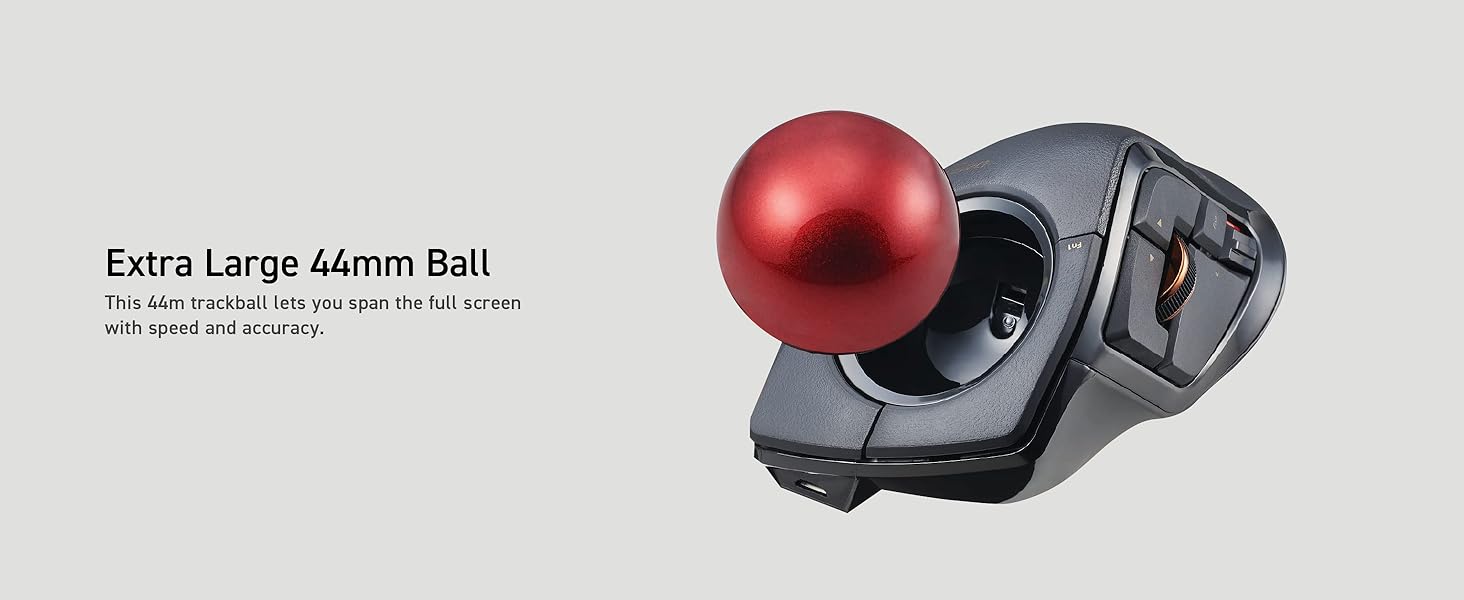
ELECOM got it right with this one. Although I'm currently trying out the HUGE PLUS, the DEFT PRO is still on the desk waiting to be plugged back in. The DEFT was a bit too small, the HUGE was a bit too big, and the DEFT PRO was just right (I sound like Goldilocks now). It does still suffer from what I reviewed in the HUGE PLUS: The left click button should be above the forward/back buttons on the left side of the trackball to prevent stressing the muscle between your thumb and pointer. Other than that, I don't have anything negative to say about this trackball. The stock ball that came with this item was abysmal. I read up on it, and ordered a 44mm ball that Redditors praised for smoothness. They were not wrong, the new ball arrived promptly and worked like a charm in my DEFT PRO. There was still the TINIEST bit of stiction when doing slight adjustments/movements with the ball. After a polish + wax job, it's smooth as silk. If you don't have gigantic hands, this is the trackball for you to resolve or prevent RSI, or carpal/cubital tunnel syndrome
C**S
Great attempt, almost there!
I like the innovative approach they took to the design of this mouse, however, they failed to have someone really use it and fine tune the functionality to what is easiest / makes the most sense. The software also completely fails, as a few buttons are left unusable if, for some unexplained reason, your computer doesn't talk to any of the hundreds of drivers people posted to fix this problem right. OK, overall, I can use this mouse. I have a logitech corded finger mouse in a drawer, and this mouse gets used daily as my standing-desk mouse. The layout is different, but you can rapidly get used to it. Right mouse button: The biggest failing, right off the bat, is that the right mouse click is in a sometimes hard to reach location on a button which may or may not click (because you're only hitting the narrow end of the button where it's mounted to the mouse), which immediately disqualifies this mouse from being considered for a high quality gaming mouse. The #1 feature gamers want is reproducibility.. a mouse button which hits 3/5 times is 2/5 more deaths than that gamer earned. Button FN2 is a hands down better right mouse button, made clear by the fact that you can not hit the default RMB while holding the mouse in the air, however, FN2 is opposite the LMB, so you can easily hit it while holding the mouse in the air, and it naturally, and solidly, rests under the ring finger, making it a guaranteed contact 100% of the time. Unfortunately, FN1 and FN2 are two buttons which you can not use or map unless you happen to be in a subset of computers/mice which handle the drivers correctly. Even if you are, I gather remapping RMB to FN2 was still a problem.. to the degree to where there is a youtube tutorial of how to re-solder the RMB to FM2. Any device you have to solder to get it to work correctly..... The LMB is fine.. I never seem to have a problem hitting it, and it's an interesting ergonomic choice which I could see working. I can't fully expound upon the thumb controls because FN1 is one of those, but the controls I do use work fairly well.. the forward/back buttons are easy and intuitive to hit, and the scroll wheel is right where you'd expect to find it. The direction of scrolling isn't completely ergonomic, and the sensor for it doesn't seem completely accurate, so detailed scrolling has been a bit of an issue. I really also would like to find more flywheel scroll-wheels, so that you can enter a tactile mode (traditional) to scroll a single click, or you could have a smooth spin mode which engages a flywheel so it can continue scrolling. I've used a few mice with this feature, and I've got to say, it was far superior.. you can easily slow it down with light taps, and you can just click in to tactile mode again for detail work. The trackball itself is pretty decent. it's not very good for maintaining momentum (full 360 character turns and the like), and the manufacturing isn't good enough for smooth action.. it's a tad sticky, so zeroing in on detail work can be tricky. You end up controlling it with your index and middle finger, and while you can make small movements with decent control,larger accurate movements aren't really practical.. particularly sideways. Imagine, index and middle finger spinning a ball to the left.. it works, but it's not fast. If the trackball was on smoother / larger ball bearings so there's never a plastic on plastic resistance feeling, and designed the ball to be able to be flicked at high speeds right or left, or gain momentum/inertia, they might be able to overcome this. The wireless connection services this mouse offers are solid. It stays connected fairly reliably, is easy to switch between modes, and was easy to configure. I can turn off wireless mode easily, and I can charge it while using it. This mouse operates either corded (micro-USB), or wireless, and takes a AA battery. When the mouse is plugged in, it will only work corded; you can not power it with a micro-USB from a wall or another device, and use it wirelessly. This may have been done to prevent accidentally "charging" your AA, which could be dangerous in alkalaine, or without a proper charge controller. It ends up that in the limited range of wireless mouse options, I do actually game with this mouse. I also have a couple models of logitech wireless mice, and the M570 is the other mouse I use daily with my computer, given my range of choices. I was previously using the Logitech MX Ergo, but after less than a year of use, a mouse button broke making it unusable. (RMB I believe) I was dissatisfied with that mouse for a number of reasons, so chose to go back to the M570 I remembered liking this time.. the M570 has so few buttons though, I'm not sure where I stand on the two of them.. I think, all in all, the MX Ergo was the best of the 3.. but it definitely has it's own issues.
K**O
I really WANTED to like the ELECOM Deft Pro trackball, but it is just overpriced hot garbage!
I recently purchased this ELECOM Deft Pro trackball on Amazon on June 26, 2025. I have been using it for a couple of weeks now, but I am still just having a lot of problems getting this trackball to work well for me. I originally bought this trackball to replace an old Logitech M570 wireless trackball that the buttons had started acting up on and it was getting difficult to use. At first, I thought maybe it was just a learning curve for me to try to re-learn how to use this particular trackball, since it is a lot different than the Logitech M570 "thumb ball" style of trackball I was accustomed to using for many years. However, even after getting acclimated to the Deft Pro trackball over a couple of weeks now, I am STILL having a lot of problems trying to use this! I have already installed the ELECOM Mouse Assistant 6 software on my computer, I tried to map functions to all of the buttons on this trackball, and I have tried playing around with the DPI settings on the trackball as well as the mouse tracking speed in Windows settings. However, so far NOTHING has actually made this trackball as useable to me as my old Logitech M570 trackball was when it was brand new! (Before I started having problems with the buttons failing on it anyways...) No matter which DPI setting I use, the trackball doesn't seem to track very smoothly AT ALL! The 500 DPI setting is much too slow to be useable, although it seems a bit more "accurate" and easy to get the mouse pointer exactly where you want it on the screen. However, it feels like you have to keep rolling the trackball forever just to get the mouse pointer to move across the screen! But then the 1,000 DPI setting is already almost too fast though, even though this is the setting I am currently using on this trackball. The mouse pointer is just very jittery and tends to jump around on the screen a lot from relatively little input on the trackball. It is nearly impossible to smoothly move the pointer to where you want it on the screen as it jumps around a lot from just barely nudging the trackball. This is only exacerbated even more at the 1,500 DPI setting, which is essentially entirely unuseable and the mouse pointer just jumps from one side of the screen to the other with very little movement of the trackball! The other issue I have with this trackball is that, while I initially liked all of the extra buttons that are on it, in reality, they are completely *USELESS* for what I want to use them for! As I previously mentioned, I tried to use the ELECOM Mouse Assistant 6 software to map functions to all of these buttons, which seems to work fine in Windows at least. However, when I try to setup my key mappings in games like Counter Strike 2, Battlefield 2042, or Valorant, the extra buttons on this trackball do not actually map to anything in the game!! I THOUGHT that I should be able to just click one of the function buttons on the trackball to assign it to a function in-game and have the game recognize it as a certain mouse button. But, that would be TOO EASY and this is *NOT* the case at all!! For some strange reason, when I click one of the other "function buttons" on this trackball (Fn1, Fn2, or Fn3), these games think that I'm pressing the "Left Alt" key on my keyboard! So, I literally *CANNOT* map separate functions to the supposed FUNCTION BUTTONS on this trackball in any of the games that I play on my computer! So, all of these extra buttons are literally USELESS and do absolutely NOTHING outside of Windows, even with ELECOM's Mouse Assistant 6 software installed! I was REALLY hoping that this ELECOM Deft Pro trackball was going to be worth spending the money on and would be a better replacement for my failing Logitech M570 wireless trackball. Unfortunately, the sad reality is that this trackball is UTTER GARBAGE!! I initially LOVED the overall design of this trackball and think that it has the potential to be a really great trackball if ELECOM could get their heads out of their own asses! But, the overall poor sensor tracking, jittery physical trackball movement, piss-poor scroll wheel tracking, and inability to map the function buttons in any games makes this trackball entirely unuseable for the primary purpose for which it was designed! (Actually, speaking of the scroll wheel on the Deft Pro, there is ONE feature of this that I REALLY like and wish other trackballs or mice had, which is the "tilt-wheel". You can roll the scroll wheel up or down to scroll vertically on a page as well as "tilt" (or push) the scroll wheel left or right (from the perspective of the trackball, it's actually up or down because of where the scroll wheel is mounted on the side of the trackball) to scroll horizontally on a page! This was actually a really clever design and I wish more manufacturers would do this with the scroll wheels on their mice and/or trackballs!) So, the TL;DR on this review is that, despite the cool looking design of this trackball and the nice list of features it boasts, sadly, it falls flat on its face in its implementation and it is entirely unuseable! I REALLY wish that ELECOM could make this trackball actually WORK as well as it looks! I love the look and overall design of this trackball, but it's just too janky to realistically use every day without driving you crazy! It's certainly NOT worth the $60 they're charging for it and I could buy another Logi Ergo M575 wireless trackball for around $45 (at most $50, depending on where you buy it...) that works MUCH better than the ELECOM Deft Pro trackball! So, I will DEFINITELY be returning this trackball and getting my money back as it is wholly underwhelming. I would NOT recommend that anyone buy this, at least if you value your sanity!
K**S
So Much Potential Squandered by Poor Build Quality
I wanted to love this trackball. Having converted from mice to various trackballs and delving into all the options present from companies other than the typical big names, I was excited to see a Japanese company making what appeared to me to be high quality devices. I purchased this in October of 2018 and used it on my personal computer for less than a year before it just... stopped working. I plug it in and it has no signs of life whatsoever. It just... died. Huge bummer and now I'd be very hesitant to buy anything from this company. I really wish that wasn't the case because this thing has all kinds of great features for ergonomics and connectivity, and it is the most premium-feeling trackball I've used (I also own a Logitech MX570 and an Ergo MX, both great thumb-operated trackballs that have stood the test of time but cause their own ergonomic issues simply from being thumb-operated). Unfortunately I can't recommend this trackball unless you have the tools and knowledge to fix it when the internal electronics die. I see the price has dropped from when I purchased it; probably due to the reality that charging so much with something of such poor durability has made this a hard sell. If you decide to try one regardless of the durability issues, I wish you the best of luck. Hopefully yours ends up lasting. EDIT: So as a last ditch effort before throwing this device away, I decided to see if it would work on a new computer. Plugging it in, it recognized the device and Windows 10 installed the driver... and it still didn't work. I figured, since it was able to at least recognize the device, that I should at least try the wireless adapter. Lo and behold, using the included wireless adapter the device worked! I was amazed. However, the wireless connection was intermittent to the point that it was impossible to rely upon. Finally, I figured out how to connect the device via bluetooth using an adapter I use for my Xbox One controller and it has been working much smoother and consistently. Due to this device actually working well on 1/3 connections it offers, I am bumping the rating from 2 back to 3 stars. Even though the durability is questionable, the device itself feels premium and I am happy that it didn't ultimately meet an untimely end.
J**N
Worst stiction ever. Updated 1/2/2023
Update: my Kensington expert died and, at a loss for a better trackball, I decided to try this one again. Either i got a dud the first time or their QC has gotten better because my new one rolls so much better than the first one, and the scroll wheel is usable! It's now five stars and in my opinion the best index trackball on the market. ------------- Stiction: n.; the static friction that needs to be overcome to enable relative motion of stationary objects in contact. It's how much force it takes to get the ball rolling, literally in this case. This mouse is the best index finger trackball on the ever-dwindling market right now. Which is a glaring indictment of peoples' understanding of ergonomics and of the HID market in general. Elecom for their part made a trackball which can literally do anything; but that stiction makes the main attraction a drag to use. Pros: - 10 buttons, each programmable to give just about every input imaginable - Perfect size to replace the eternal God-Emperor of all trackballs, the MS Explorer, and his Shogun the Logitech Trackman - Amazing responsiveness and long life on wireless mode - Perfect palm grip - Stays in place on a mousepad no matter what, an earthquake is needed to move this thing Cons: - Software and support, as well as translation quality, reflect the ever-lingering Japanese insularity - DPI switch is on the bottom of the DEFT but easily accessible on the side of the HUGE. I do a lot of form work and 3D editing, an easily accessible switch on a medium sized trackball would be ideal. Luckily, the thing is so programmable that any button or even gesture can become a DPI switch - The scroll wheel spring is way too strong, it is annoying and can't be shaved down or softened; the amount of force needed to click the scroll wheel is also excessive. I set FN1 to middle-click. - The biggest problem and really a deal-breaker that would have sent me to Kensington were I not a sucker for being stubborn about emotional sunk cost: the massive stiction on the ball. I have to three-finger this thing just to get it to start moving smoothly. Forehead oil, wax, clipper oil, replacing the bearings with Zirconium Oxide, Ruby, AND BAM (Aluminium Magnesium Boride), just giving it a month to break in - I've tried it all. My wife's $20 logitech? Rolls like the ball's on a layer of supercooled helium. If you can break it in, this is the best trackball on the market today, despite the cons. I don't want to have to wait, and I have a Shuttle Xpress for extra buttons so I may switch to a cheap Logitech or Kensington.
佐**遼
丈夫で軽いセミハード仕様で使い勝手が〇
マウス本体がぴったり入るので重宝しています。 強いていうのならUSBを収納するスペースを削ってもっと薄型になればかさばらくていいかなって思いました。
R**O
Awesome!
Great comfort, very easy to use. Took me a week or two to completely adapt. I would love if the scroll wheel was infinite like the Logitech MX mouse
S**M
Fast delivery
User friendly
A**P
deft pro top!!
In sintesi, dopo l'huge ho deciso di passare alla tracball anche su portatile, optando per il compagno "deft pro" (l'huge wi-fi era troppo grande) primo impatto: Top! E cosa importante! non ho neanche dovuto modificarlo sostituendo le sfere originali perchè precise( a quando pare su questa versione pro ci stanno attenti a mettere le sfere precise)! Tempi di adattamento: gli stessi per l'huge! cioè per chi proviene da una trackball simile quasi zero per chi lo sua la prima volta ...ci vuole da prenderci la mano(anche con qualche videogioco) un po' scomodo è il pulsante selezione per i dpi che si trova sotto la base! avrei preferito il pulsante dpi al posto dell pulsante di selezione frequenza bluethooth(che sarebbe stato benissimo sotto) utilizzabile con bluethoot- wifi- cavo lungo 1,5 m.(nella foto vedrete una mia fissazione che di è proteggere le decalcomanie stampate... non fateci caso!) pro: -Platiche ok non danno la sensazione di essere cheap ,la parte superiore è tramata con un bell effetto dove poggia tutta la mano(circa 18 cm dall' medio fino all inizio del polso). -Posizione della mano risulta rilassata anche se più vincolata rispetto all' huge (e anche per questo modello su internet si possono trovare supporti da stampare in 3d per aumentare l'inclinazione è la comodità). -Buona la disposizione dei tasti principali; che sono ben disposti e facilmente raggiungibili. Anche se come tasto destro mi trovo meglio ad usare l'ultimo(fn3) con l'aulare mentre indice e medio controllano la sfera! -La sfera è 44 mm facilmente manovrabile (vola) è sopratutto le sfere che sono precisie (pare che siano apposta selezionate)! - utilizzabile con bluethoot- wifi- cavo lungo 1,5 m contro (ma lo considero proprio inerzia) -il pulante di selezione dei dpi è posizionato sotto la base e ogni volta per cambiarli si deve alzare il mouse, (con led visibile ma discreto che si illumina dagli spazi aperti dalla rotella, - rotella che risulta essere un po'rumorosa rispetto all' huge). - Avrei preferito il pulsante dpi al posto dell pulsante di selezione frequenza bluethooth ! software: software decente con possibilità di personalizzare il mouse con diversi profili. Essendo il mouse senza memoria interna, si deve avere in funzione il software in background per averlo personalizzato. e qui mi sembra che sia da migliorare! nel fatto che essendo "vincolato a tenerlo attivo) sarebbe bello che il software riconoscesse i programmi in uso, è in automatico caricasse il profilo in automatico (altri software lo fanno) invece ogni volta prima di utilizzare un profilo per un determinato programma lo si deve selezionare. pps per la elecom.... sarebbe bello se potete mettere sul mercato almeno la sfera trakball di ricambio, visto che è la parte che con l'uso può rovinarsi di piu !
M**N
Ergonomics might not suit everyone, but everything else impresses
This elecom trackball mouse is great for me because it's universal: it is USB wired, 2.4GHz unwired with USB receiver dongle or unwired bluetooth. It's very precise, and I enjoy working in an armchair with it perched on the armrest and not having to move it over a mouse surface. I'm still finding out how to program its additional buttons, I want to use them as macro shortcuts. It uses a single AA battery, I've had the device for a month or two, it hasn't needed replacement, there's an on/off switch but it does seem to have auto-off too or a very low idle or sleep mode current use. It is a bit larger than I expected, a subjective minor reservation, and it's quite expensive, although in the same range as equivalent Logitech and other well-respected brands' products, and its build quality is evident which reflects the price. Amazon has given me the opportunity to star-rate "sheerness". I don't know what that is, so I've mid-ranged it.
Trustpilot
2 months ago
3 weeks ago